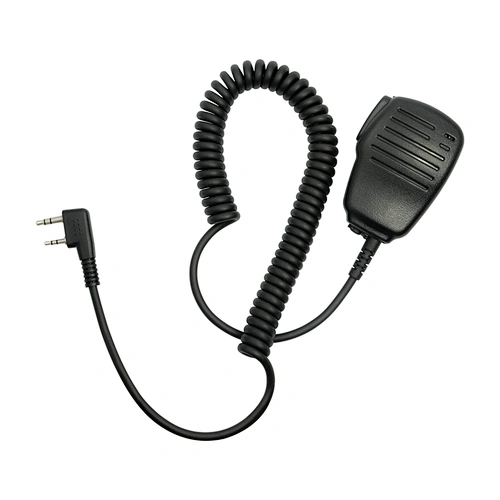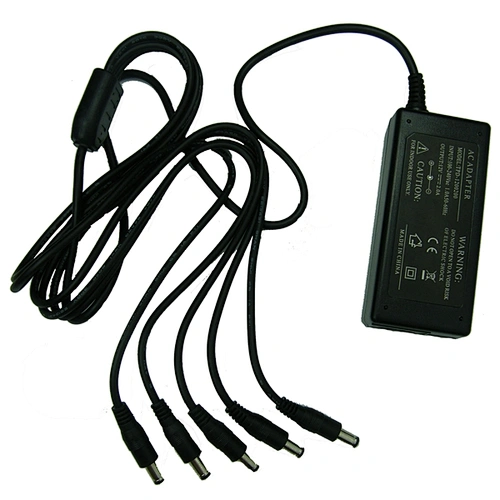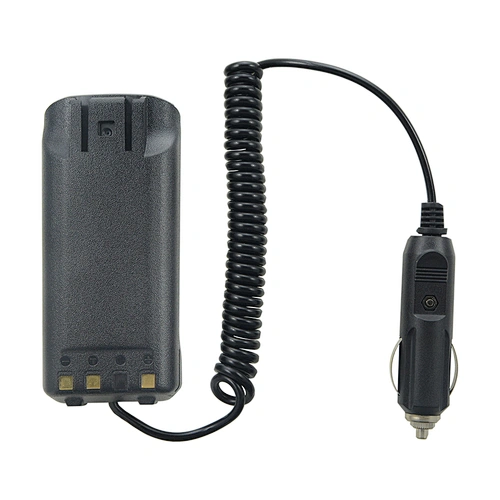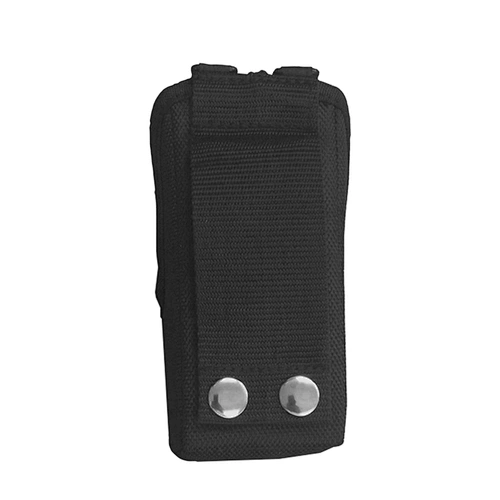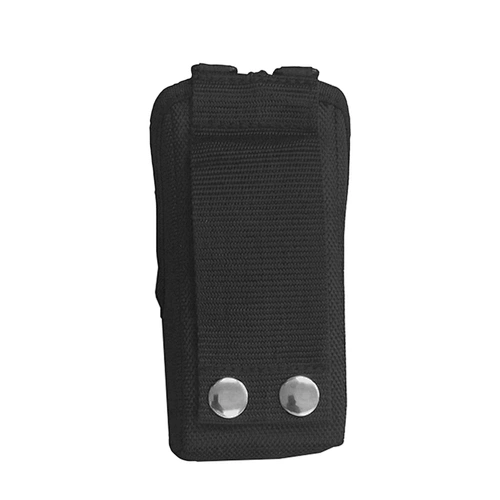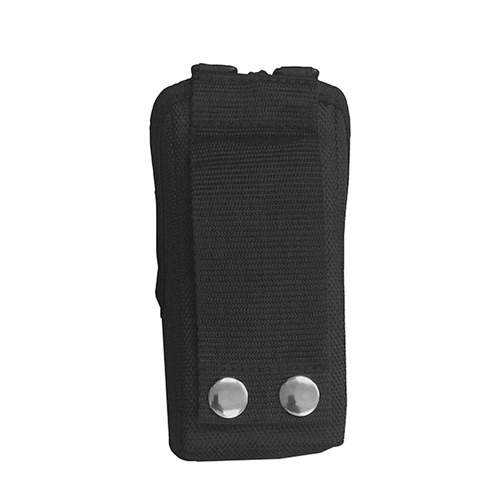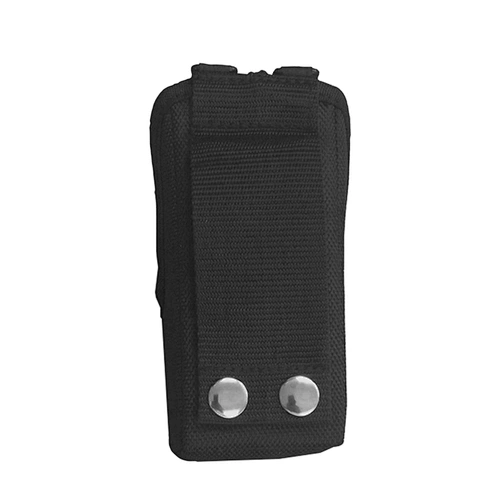

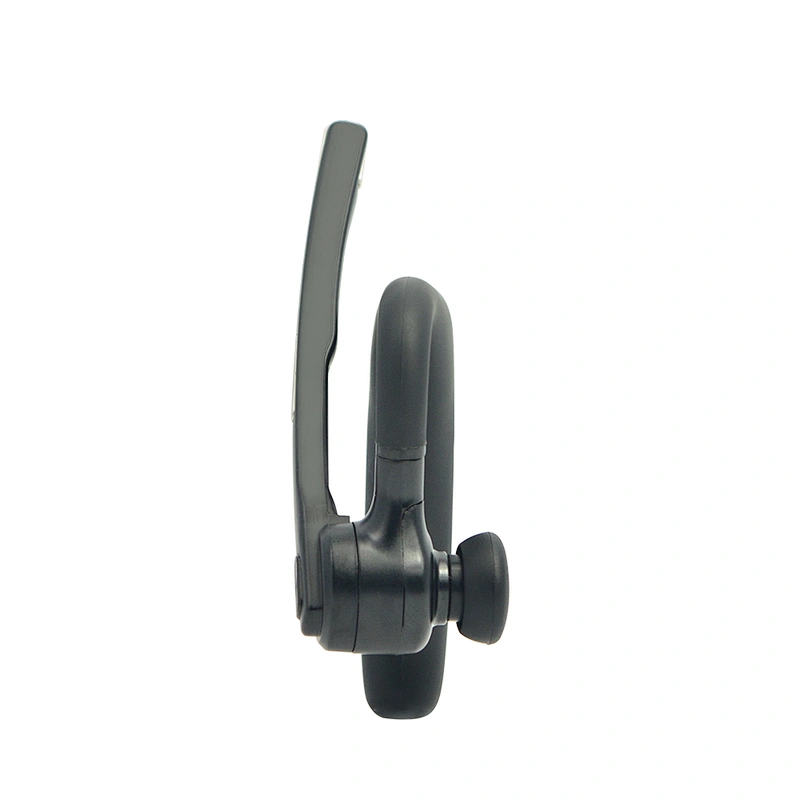
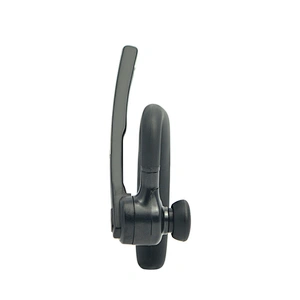
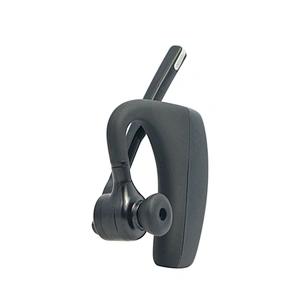
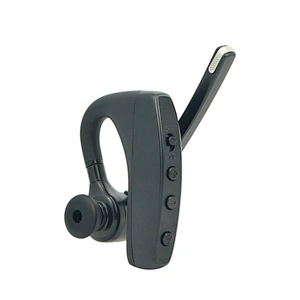
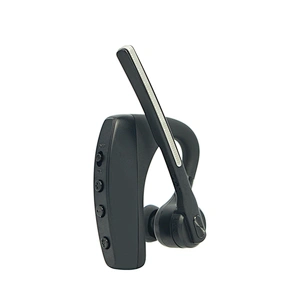
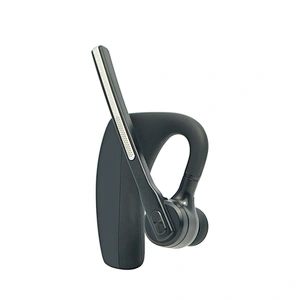
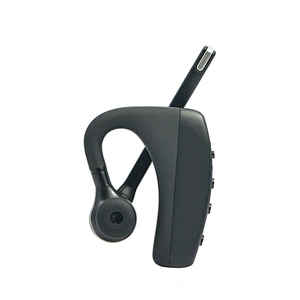
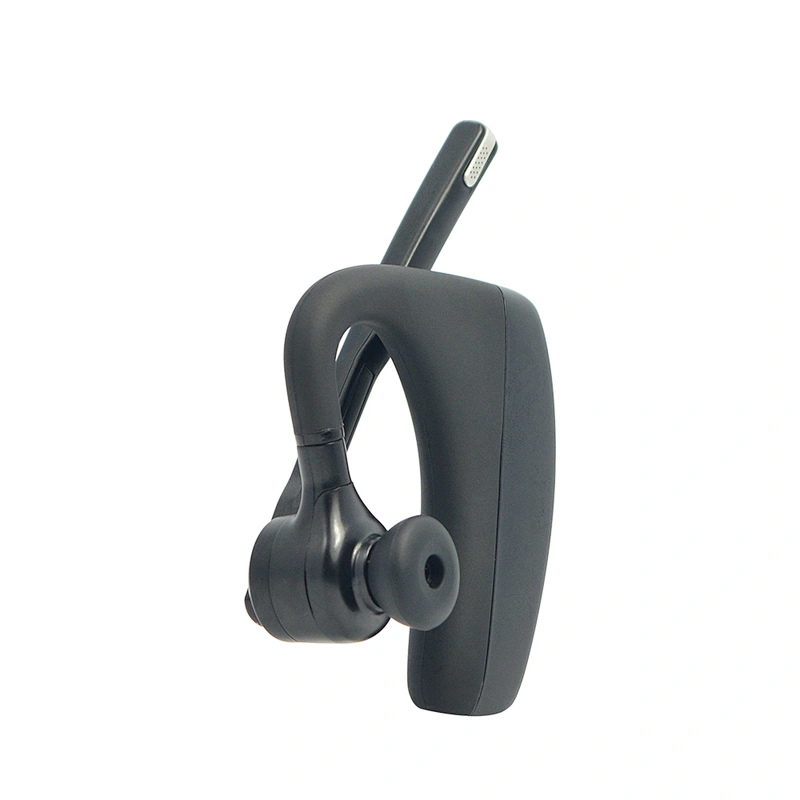
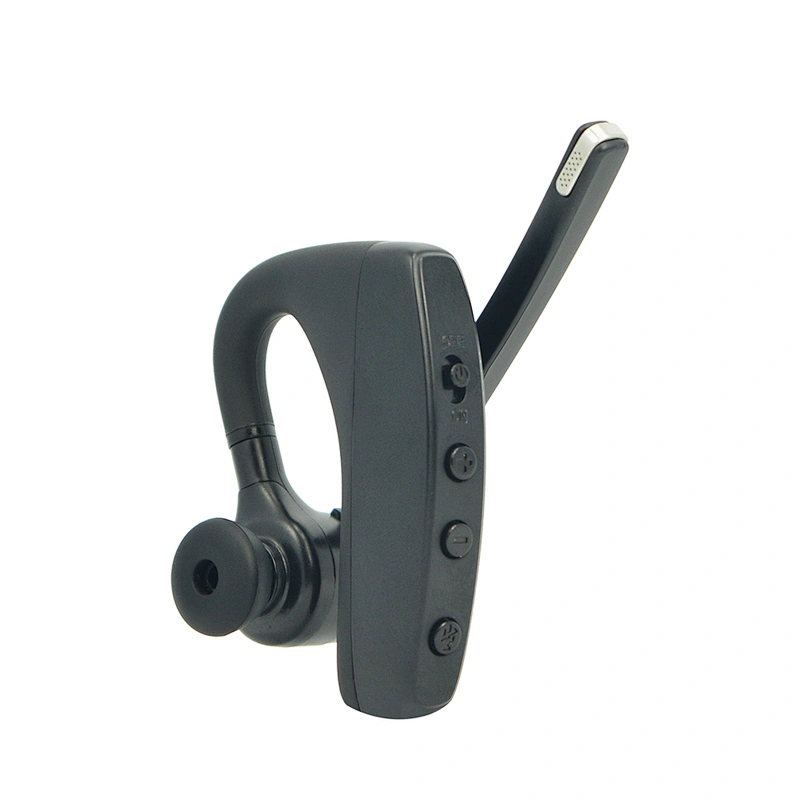
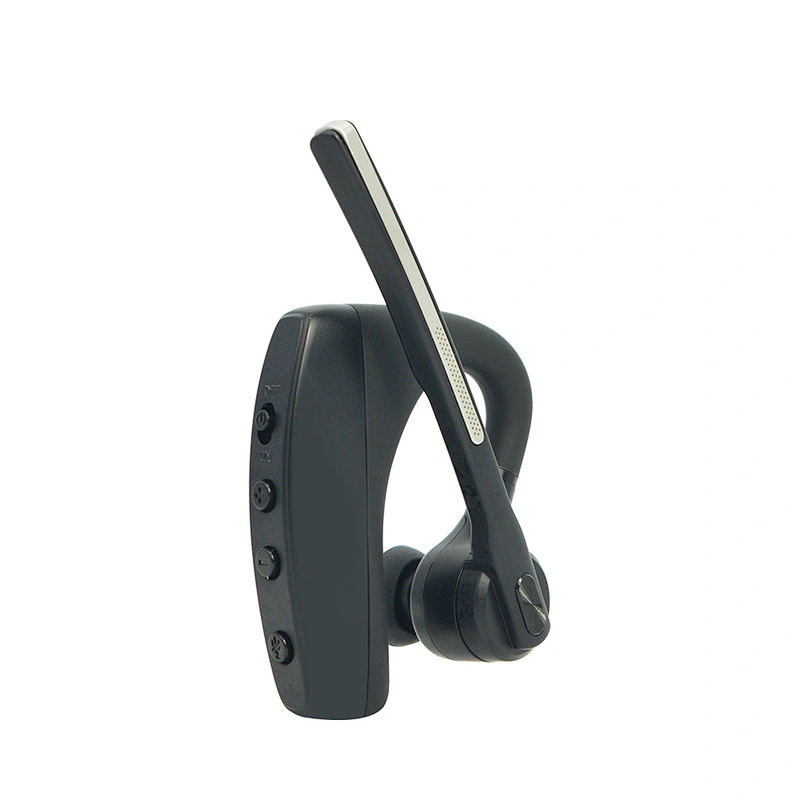
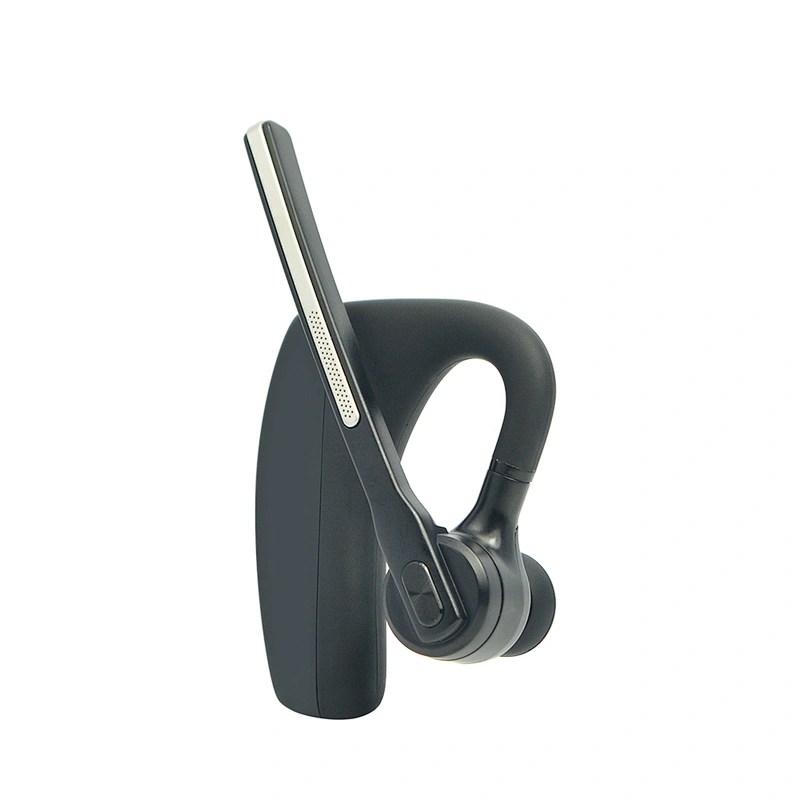
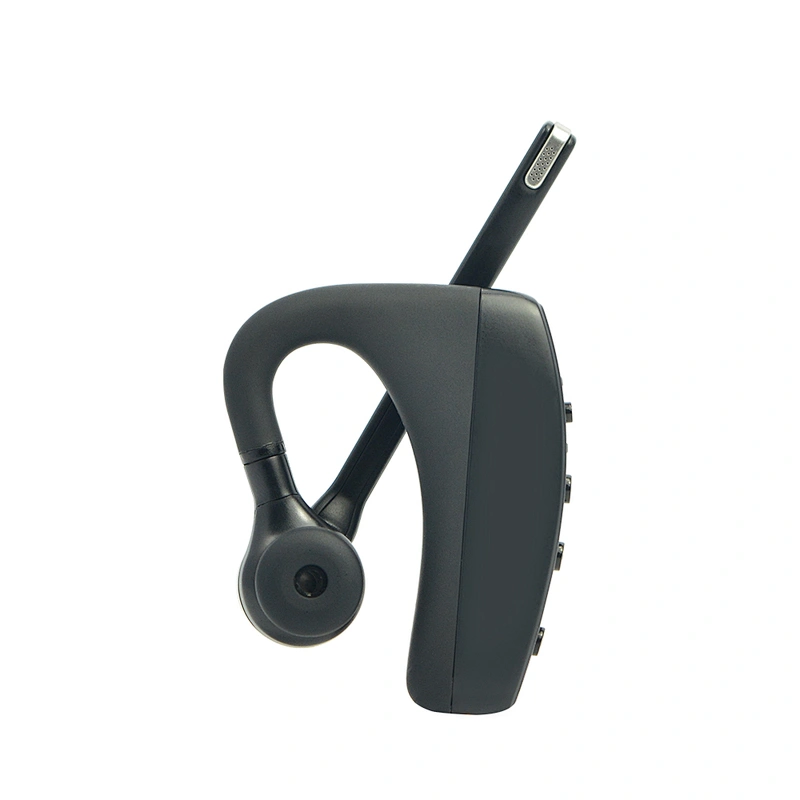
- Color:Black
- Name:TA-B1
- Type:In-Ear Headset
- Logo:Tesunho
- Support:Wireless Calling
- Package:Box Package
- Application:Security
- Is wireless:Yes
- Wireless Type:bluetooth
- Support Memory Card:No
- Vocalism Principle:Other
- Volume Control:No
- Control Button:No
- Style:In-ear
- Communication:Wireless
- Use:Mobile Phone
- Use:Gaming
- Use:Sports
- Use:Travel
- Use:PROFESSIONAL
- Use:For Internet Bar
- Function:bluetooth
- Function:Microphone
- Waterproof Standard:IPX 0
- Active Noise-Cancellation:No
- Place of Origin:CN;FUJ
- Brand Name:Tesunho
- Model Number:TA-B1
TA-B1 PTT Headset BT Microphone Wireless With POC Supported
Function | Operation |
Enable Pairing Mode | Hold the Multi-function Button for 5s |
Power On | Turn the Power button to ON state |
Power Off | Turn the Power button to OFF state |
Answer Telephone | Click the Multi-function Button once |
End up Calling | Click the Multi-function Button once |
Reject the Incoming Call | Hold the Multi-function Button for 2s |
Latest Number Redialing | Double click the Multi-function Button |
Stop the Outbound Call | Click the Multi-function Button once |
Voice Dialing | Hold the Multi-function Button for 1s |
Microphone Mute Switching | Click the Mute Button once |
Volume Up/Down | Click the volume+/- Button once |
Pause/ Play | Click the Multi-function Button once |
Previous/ Next Track | Hold the volume+/- Button for 2s |
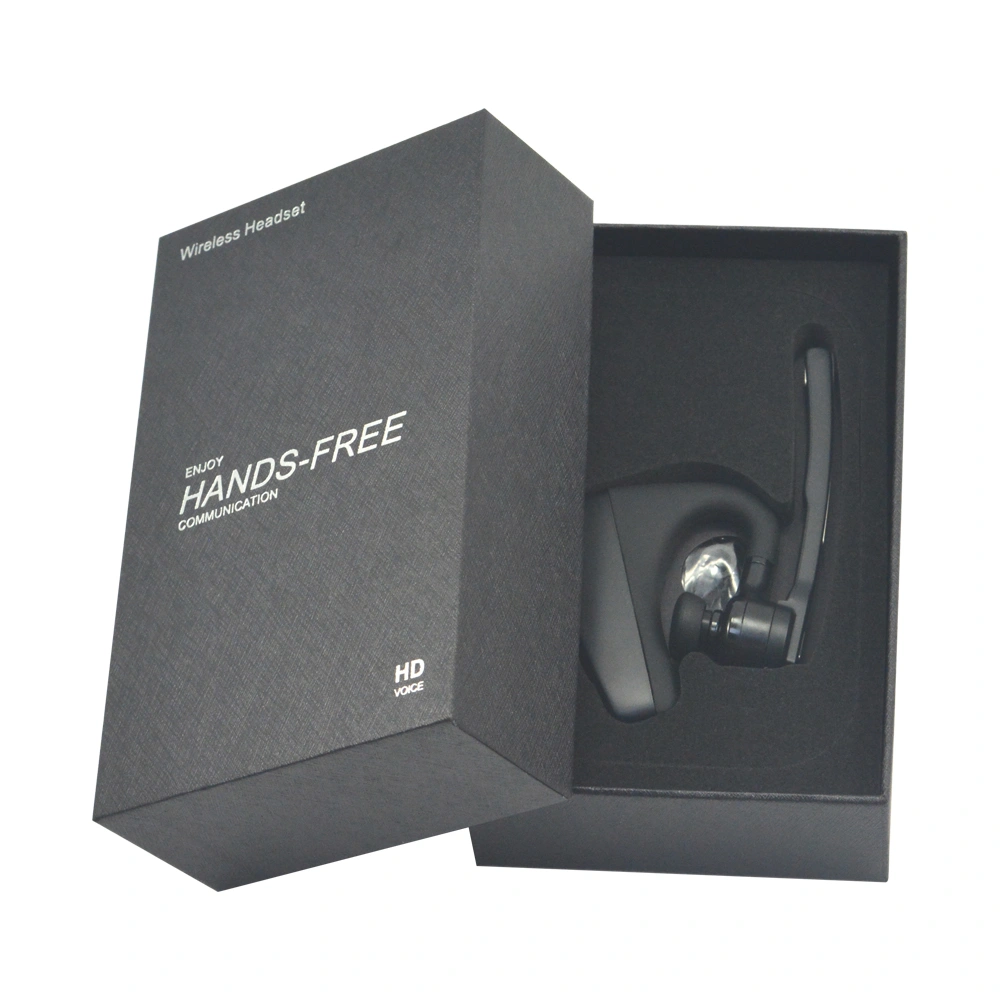
Packing
Troubleshooting
Ⅰ. The mobile phone can’t find the headset
Possible Reasons:
1. The headset is not under ON and standby state;
2. The headset program is error;
3. The program of the mobile phone is error.
Solutions:
1. After turning off the headset, hold the Multi-function Button (red and blue indicator flashes by turn) to enable pairing state;
2. Recover the Wireless headset’s default setting;
3. After restart the mobile phone, remove all pairing data in the Wireless of the mobile phone.
Cautions:
1. After the Wireless headset has entered in the pairing mode, it will connect within 2min , otherwise, the headset will automatically turn off;
2. When charging, hold the Multi-function Button for about 4s till the blue indicator flashes to recover default setting.
Ⅱ. No sound from the headset
Possible Reasons:
1. The volume of the mobile phone is unsuitable;
2. The Wireless headset and mobile phone are not connected correctly;
3. The Wireless headset is out of the working range.
Solutions:
1. Adjust the volume in the mobile phone;
2. Operate with the reference of the use steps;
3. Keep the headset in the range of 10m to mobile phone without any obstacle.
Cautions:
1. Do not have any other operation when searching headset for avoiding program error;
2. Please use headset near the mobile phone to assure best effect.
Ⅲ. Charging red indicator doesn’t light on
Possible Reasons:
The headset has not been used for a long period.
Solutions:
Charge headset for about 30min, and then the red indicator may light on.
Cautions:
It will drop the capacity and service life of the battery if it is over charged or the
Wireless headset is stored in the environment such as closed car.
Send Message
Related Products